
Card Controls
Managed through Online Banking or our mobile app, easily monitor spending and reduce fraud.
The power to determine when, where, and how your debit card is used.
-
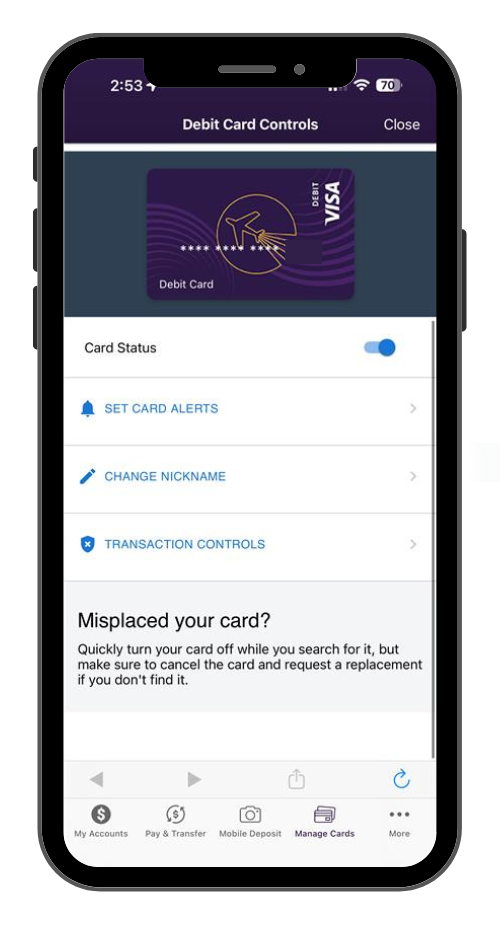
Turn your card on/off with a tap
-
Enable or disable debit card use by payment category
-
Set a global spending limit to manage your debit card activity
Debit Card Controls was updated on August 4th. Please log in and re-establish your settings and alerts.
Take control of your debit card
- Turn your card On/Off to temporarily deactivate your card for instant peace of mind. When your card is turned Off, it can’t be used to make purchases or withdraw cash. This is a great option if your debit card has been misplaced, stolen, or is simply not being used. Flip the switch back On when you’re ready to start using the card again.
- Set a global spending limit to help manage total debit card activity.
- Control how your debit card is used across merchant categories such as: food and dining, shopping, entertainment, travel, and more.
- Customize how your debit card is used by enabling or disabling purchases by payment category, including ecommerce, in‑store, autopay, and ATM transactions.
- Set up alerts to get real-time notifications about your debit card activity via: text, email, and push notifications.
Get started
Take control of your debit card in our mobile app and in Online Banking.
Within Online Banking:
- Hover over Manage Cards and select Debit Card Controls.
In our mobile app:
- Tap Manage Cards at the bottom of the screen and select Debit Card Controls.
Frequently Asked Questions
In Online Banking:
- Hover over Manage Cards, then click Debit Card Controls.
- Use the toggle next to Card Status to turn your debit card ON or OFF.
- Tap Manage Cards at the bottom of the screen, then Debit Card Controls.
- Use the toggle next to Card Status to turn your debit card ON or OFF.
NOTE: This will not decline any scheduled, recurring payments you have setup.
Changes you make with Debit Card Controls are applied instantly.
Yes! From the main Debit Card Controls page, select from your list of available cards, based on your GECU account(s).
No, your recurring transactions will not be blocked. They will continue to be processed even when your card is turned off.
You can set alert preferences by Merchant Category, Payment Category, and Global Spending Limits. From there, choose whether you want to receive an alert or decline transactions based on specific merchant categories, payment categories, or overall spending thresholds.
- Online Banking: From the main screen, select Debit Card Controls, then click Transaction Controls. From there, select a transaction type and toggle it on/off to block or allow it.
Mobile App: Tap Debit Card Controls, then Transaction Controls. From there, select a transaction type and toggle it on/off to block or allow it.
Yes! You can set blocks for specific merchant categories such as: food and dining, shopping, entertainment, travel, and other merchant types.
- Online Banking: From the main screen, select Debit Card Controls, then click Transaction Controls. From there, select a merchant category and toggle it on/off to block or allow it.
- Mobile App: Tap Debit Card Controls, then Transaction Controls. From there, select a merchant category and toggle it on/off to block or allow it.
Yes! You can control transactions by payment type (such as in-store, ecommerce, ATM, autopay, and more) within Transaction Controls.
- Online Banking: From the main screen, select Debit Card Controls, then click Transaction Controls. From there, select a merchant category and toggle it on/off to block or allow it.
- Mobile App: Tap Debit Card Controls, then Transaction Controls. From there, select a merchant category and toggle it on/off to block or allow it.
Yes! You can set to decline or alert you for transactions over specified amounts.
- Online Banking: From the main screen, hover over Manage Cards, click on Debit Card Controls, and click the Set Card Alerts button, then select Spend Limits.
- Mobile App: Tap Manage Cards, Debit Card Controls, select the Set Card Alerts button, then select Spend Limits.
- Online Banking: From the main screen, hover over Manage Cards, click on Debit Card Controls, and click Set Card Alerts. From there you can use the toggle to have the alerts turned on or off.
- Mobile App: Tap Manage Cards, Debit Card Controls, select Set Card Alerts. From there you can use the toggle to have the alerts turned on or off.
During a transaction, you will instantly receive alerts via: email, text, and/or push notification.
No, travel notifications can’t be submitted via Card Controls at this time. Please complete the Travel Notification Form before you travel, so your debit card activity is not potentially flagged as fraud.
In Card Controls, turn off each alert in the individual menus for: Global Spending Limits, Merchant Category, and Payment Category.
No, this service is completely free! If you choose to receive text alerts through Card Controls, your carrier’s messaging and data rates may apply.
You must enroll in Online Banking or download our mobile app to use Card Controls.
Once you open a GECU checking account with a debit card, you will be able to start setting up Card Controls within one (1) calendar day from the time of account opening.
At this time, Card Controls is available only for your GECU Visa debit card.
General Electric Credit Union is a full-service financial institution headquartered in Cincinnati with branches in Ohio and Kentucky.